


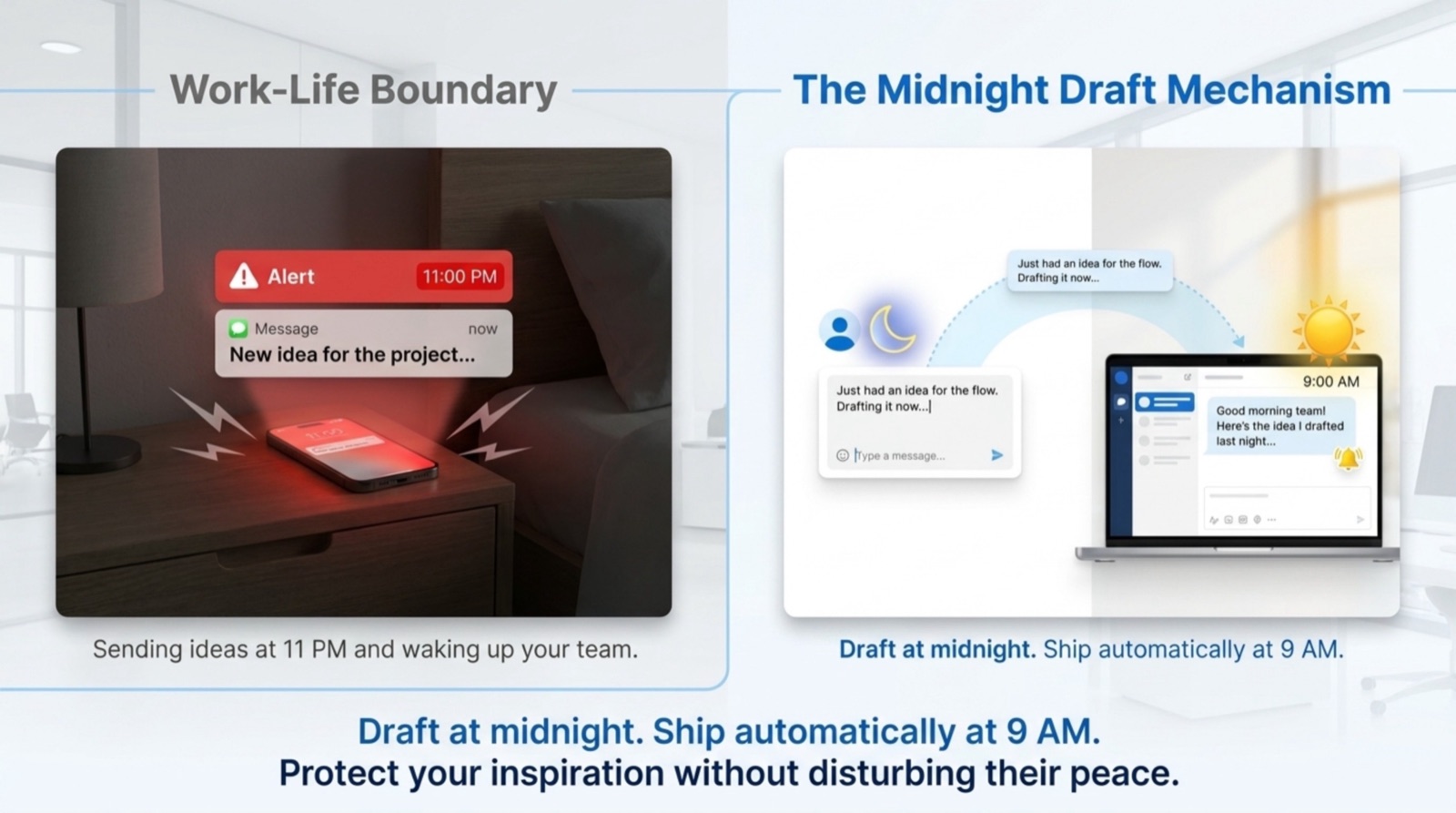
You're writing a Slack message at 11 PM and it's important — but you don't want to ping someone at 11 PM on a Tuesday. Or it's Sunday and you just remembered the Monday standup prompt. Or you want to send a reminder at exactly 9 AM and you're not going to be at your desk. Slack's scheduling feature handles all of these. Here's how to use it, including the parts that aren't obvious.
Method 1: The built-in 'Send Later' (one-off messages)
Slack's native scheduler has been around since 2019 and it's the fastest way to schedule a single message. Here's the full flow:
- Open the channel or DM where you want to send the message
- Type your message in the compose box
- Click the small arrow icon next to the Send button (bottom right of the compose box)
- Click Schedule message
- Choose a suggested time or click Custom time to pick a specific date and time
- Click Schedule Message to confirm
Keyboard shortcut: On Mac, you can press Cmd + Shift + Return after writing your message to open the schedule menu. On Windows it's Ctrl + Shift + Enter. Much faster than clicking.
Once scheduled, the message appears in the channel's Scheduled Messages section (visible only to you). You can edit or cancel it before it sends.
How to view, edit, or cancel a scheduled message
- In the channel, click the clock icon at the top right (next to the search bar) — this shows all scheduled messages in that channel
- Alternatively, go to Home in the left sidebar and click the clock icon for workspace-wide scheduled messages
- Hover over the scheduled message → click the three-dot menu → Edit message or Delete message
One gotcha: You can edit the message content up until it sends, but you cannot change the scheduled time after setting it. You'd need to delete it and reschedule.
Method 2: Scheduling on mobile
The mobile flow is slightly different:
- Type your message in the compose box
- Long-press (tap and hold) the Send button
- A menu appears — tap Schedule for later
- Pick a time from the suggestions or tap Pick date and time
Mobile scheduled messages are subject to the same view/edit limitations as desktop.
The big limitation: no native recurrence
Here's the thing Slack's native scheduler can't do: recurring messages. You can schedule a message to send once on a specific date and time. You cannot tell Slack to send the same message every Monday at 9 AM. Every week, you'd have to manually reschedule it — which defeats the purpose.
This is the most common request in Slack's feedback forums. As of mid-2026, Slack still hasn't built native recurrence into the scheduler.
Method 3: Recurring scheduling with Schedule Message
Schedule Message is a Slack app that adds true recurrence to your scheduled messages. It's free to start and takes about 90 seconds to set up.
- Install Schedule Message from the Slack app directory
- Go to any channel and type
/schedule - A modal opens — write your message
- Set a date, time, and recurrence (daily, every weekday, weekly, every two weeks, monthly, custom)
- Click Schedule — the message is now fully automated
The key difference from Slack's built-in scheduler: Schedule Message posts the message under your name and avatar, not as a bot. It looks exactly like you typed it yourself — which matters a lot for messages like standups and check-ins where the human feel changes how people respond.
Use case examples: Daily standup prompts (every weekday at 9 AM), weekly pipeline reviews (every Monday at 8:30 AM), sprint kickoff messages (every other Monday), end-of-month sales recaps (last Friday of each month). See 10 recurring Slack messages every productive team sends for a full list.
Comparing your options
| Feature | Slack Built-in | Schedule Message |
|---|---|---|
| Schedule a one-off message | ✅ Yes | ✅ Yes |
| Daily recurrence | ❌ No | ✅ Yes |
| Weekly recurrence | ❌ No | ✅ Yes |
| Custom recurrence (bi-weekly, monthly, etc.) | ❌ No | ✅ Yes |
| Posts as your name/avatar | ✅ Yes | ✅ Yes |
| Mobile support | ✅ Yes | ✅ Limited |
| Works in Google Chat | ❌ No | ✅ Yes |
| Edit scheduled message | ✅ Yes (content only) | ✅ Yes |
| Cancel scheduled message | ✅ Yes | ✅ Yes |
| Cost | Free (built-in) | Free tier available |
When to use each method
- One-off message at a specific time → Use Slack's built-in 'Send Later'. It's instant and needs no setup.
- Recurring ritual (standup, check-in, reminder) → Use Schedule Message. Slack's scheduler can't do this natively.
- Team-wide recurring message in Google Chat → Use Schedule Message, which supports both platforms.
Pro tips for scheduled messages
- Respect timezones. Slack's built-in scheduler uses your local timezone. If you're scheduling a message for a team in a different timezone, convert manually or check their local time before setting the schedule.
- Don't over-schedule. If a channel is getting automated messages from multiple sources at overlapping times, it becomes noise. Space them out and prune anything that isn't getting responses.
- Check the channel description. For recurring messages, add a pinned note or channel description entry explaining the schedule so new members know what to expect.
- Test before you schedule. Especially for recurring messages, post it manually once to check the formatting looks right before automating it.
Frequently asked questions
Can you schedule a recurring message in Slack?
Can you schedule messages in Microsoft Teams the same way?
How do I see my scheduled messages in Slack?
Can I edit a Slack message after scheduling it?
Does Slack's schedule message send from my account?
Can I schedule a message in Slack on iPhone or Android?
Is there a keyboard shortcut to schedule a message in Slack?
Scheduling messages in Slack is one of those small habits that quietly improves your work. You stop interrupting people at odd hours, your team gets messages at the right moment, and the recurring rituals that used to require someone to remember to type them just happen automatically.